Open two tabs in your Evergreen browser. In the first tab, open the MARC record that has the call number/item you want to transfer. In the second tab, open the MARC record you want to transfer your item to (the “target” record).
1. Select the record you want to transfer your volume/item to
On Mark for dropdown list, select Holding Transfer.
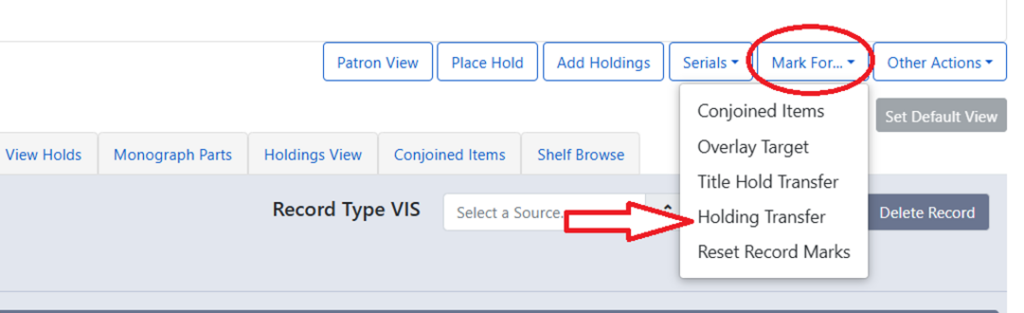
Confirmation appears at bottom right of the screen.

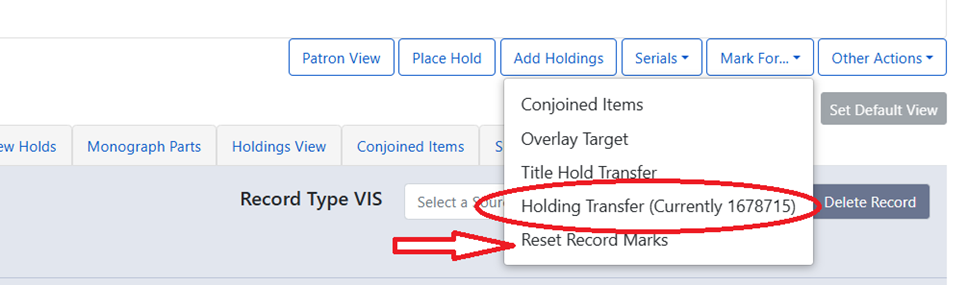
Transfer target is kept until it is reset or a new target is marked. To clear the target, click Reset Record Marks.
2. Select the record with the volume/item that you want to transfer from
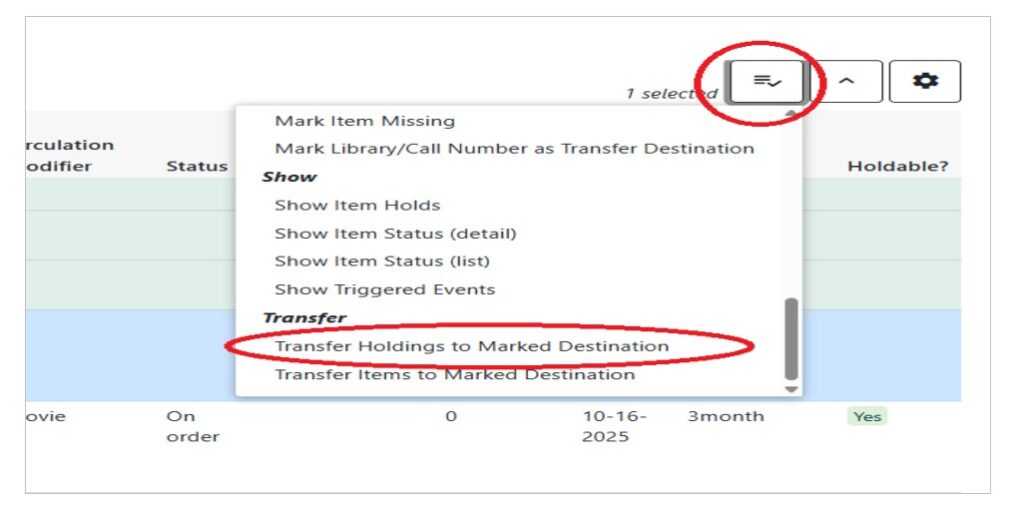
In Holdings View, select the call number you want to transfer, Click Actions list.
Scroll down to Transfer. Choose Transfer Holdings to Marked Destination.
The confirmation pop-up appears on bottom right of the screen.